


 Subvolts take Move AI-generated code from Copilot to VS Code without losing your place. Oct 19, 2026
 - Developers
- Streamline your workflow by moving AI-generated code directly into VS Code for review and edits without losing context.
Developers can now transition AI-generated code directly into their IDE for refinement, streamlining the coding workflow.
How to continue a GitHub Copilot app session in VS Code

Learn how to move an agent session from the GitHub Copilot app into VS Code without losing the conversation, code changes, or working context.
The agent has finished the bulk of your change. Now you want to inspect one implementation detail, adjust a few lines by hand, and run the project locally before you ship it.
But the work is sitting in the GitHub Copilot app… and your editor is where you review diffs, debug code, and make final adjustments. Do you have to choose between staying in the session and starting over in Visual Studio Code?
You don’t. You can open the Copilot app session directly in VS Code and continue with its conversation, code changes, and working context intact. That means Copilot can handle the repetitive or time-consuming work, then hand control back to you for closer review, hands-on editing, and local testing.
This tutorial assumes you are already comfortable navigating VS Code, running commands in its integrated terminal, and working with Git branches and pull requests.…
Opening of the original on GitHub Blog: Copilot From Subvolts
Summary and analysis by Subvolts editorial, AI-assisted.
GitHub Copilot now lets developers move an agent's work directly into VS Code, preserving the full conversation and code context. This feature allows developers to transition from Copilot's automated task completion to hands-on editing and local testing without losing progress. The integration ensures a seamless workflow, enabling Copilot to handle repetitive tasks while developers focus on review and final adjustments.
Imagine an AI assistant writes a draft of your report. Now, instead of copying and pasting, you can directly open that draft in your favorite word processor. This feature lets you do that with code, moving work from the GitHub Copilot app into VS Code to finish it.
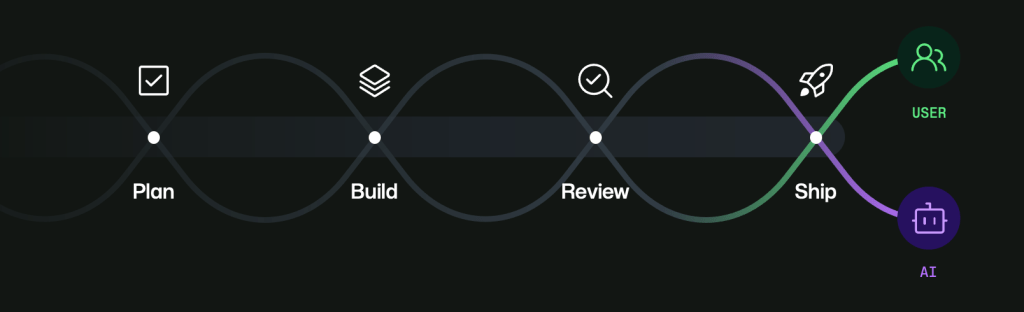
This update enhances the developer workflow by bridging the gap between AI-assisted coding and traditional IDE tasks. Developers can now leverage Copilot for initial code generation and then seamlessly transition to VS Code for detailed review, debugging, and manual edits. This integration affects developers using Copilot, offering a more efficient process. It streamlines the handoff from AI to human intervention, a crucial step in the software development lifecycle, without requiring manual context transfer.
- Product: GitHub Copilot
- IDE Integration: VS Code
- Functionality: Continue agent sessions with full context
- Workflow: AI generation to manual review and testing
- worktree
- A worktree is a directory associated with a Git repository that allows you to check out multiple branches simultaneously.
- A special folder that lets you work on different versions of your code at the same time.


The Playbook: reusable how-tos, prompts, configs and tips pulled out of the news. Pulled from this item and others like it.
- ChecklistReviewing Copilot-generated code in VS CodeChecklist for inspecting and verifying code changes made by GitHub Copilot. · 10 min
- WorkflowContinue GitHub Copilot app session in VS CodeMove a Copilot agent session to VS Code with conversation, code, and context intact. · 15 min
- HeuristicLeveraging Copilot for repetitive tasks, human for polishUse Copilot for bulk work, then switch to VS Code for fine-tuning and testing. · 5 min
- WorkflowBuild and test an AI agent using Microsoft Foundry ToolkitCreate, configure, test, and evaluate an AI agent within VS Code. · 60 min
Questions people ask
- What context is preserved when moving a session to VS Code?
- The entire conversation, code changes, and working context are preserved. This includes the task, the plan, and the dialogue that led to the code modifications.
- How do I inspect changes made by Copilot in VS Code?
- Open the Source Control view in VS Code to see all changed files. Select a file to review its changes line by line, using the preserved conversation to understand the implementation.
- Can I continue to interact with Copilot after opening the session in VS Code?
- Yes, the existing session displays in the Copilot sidebar within VS Code. You can continue prompting Copilot to explain or revise the work.
More from GitHub Blog: Copilot 20 more



Page generated Oct 19, 2026. Summaries are Subvolts' own; the story belongs to GitHub Blog: Copilot.